Within MagManager, the customer portal can be used to:
- Let your clients supply and approve their artwork
- Let your clients view and update their contact preferences
Steps to set-up the customer portal
Step 1 - Go to the main Settings page.
Step 2 - Under Settings > Select System Defaults.
Step 3 - Scroll down to the Portal Settings sections.
Step 4 - Turn on the toggle switch for Use Customer Portal.
Step 5 - Click Update to save the changes.

Note: The other settings are optional, we recommend turning on Assign Artwork back to Assigned To. As this will assign the artwork back to the user once the client updates it.
Steps to customise the portal
You can customise the portal with your own logo and add your Privacy Policy and Terms and Conditions.
Step 1 - Go to the main Settings page.
Step 2 - Under Settings > Select Customise Portal. Displayed is a list of the customer portal areas that you can edit.
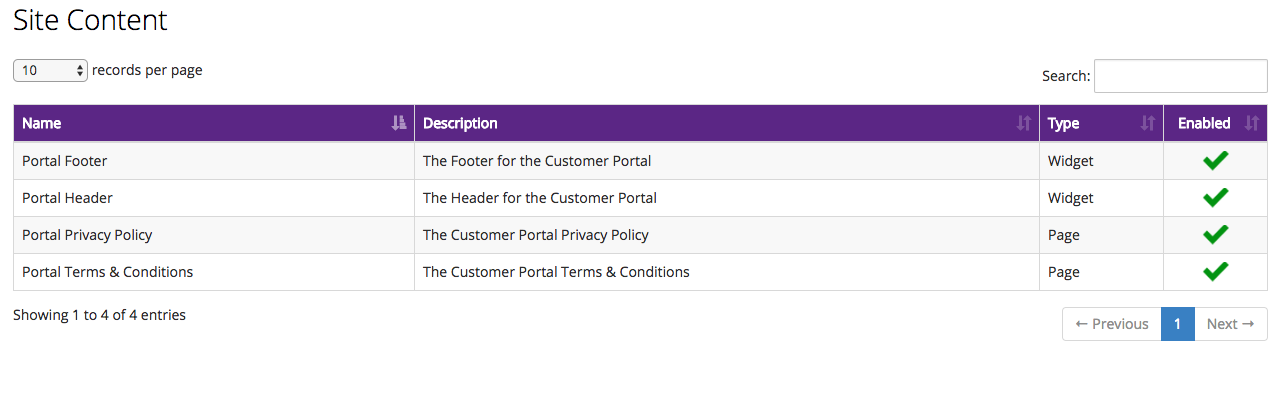
Step 3 - Customising the portal header and footer
To customise the header and footer with your own logo and any extra text you wish to add, click on Portal Header or Portal Footer. This gives you an editor enabling you to add text, links and images.
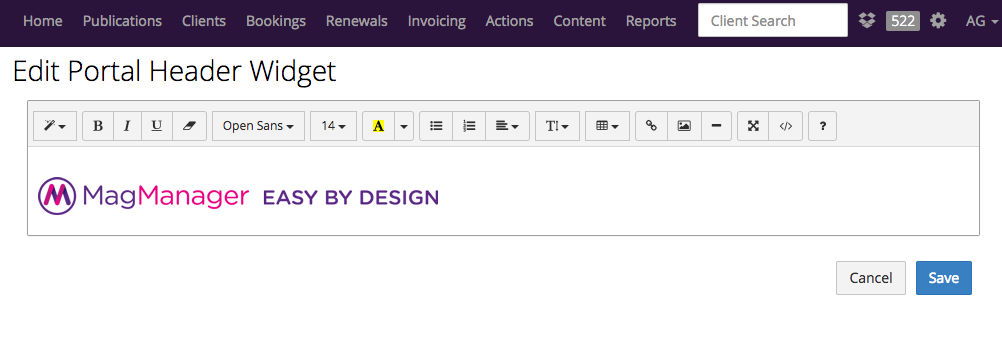
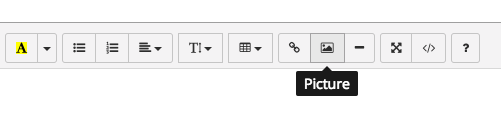
To add your logo to the header, click on the MagManager logo and press delete to remove it. Then click the picture icon to upload your own logo in .jpeg or .png format.
A suitable size for your logo is 300px for a logo that is wider than it is long. For a square logo, try 200px.
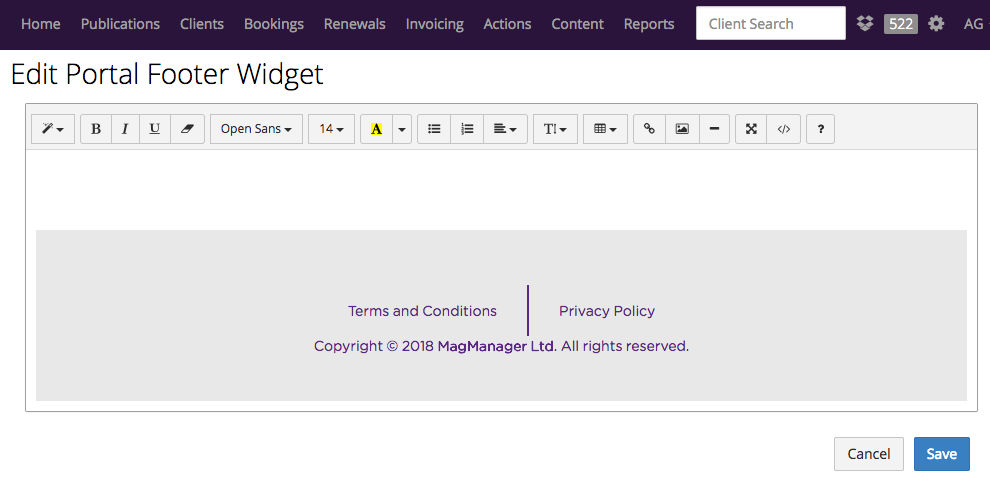
In the portal footer, you will need to replace MagManager Ltd by your own company name. You can add more text and links to the footer if you choose to. You can also change the colours in the footer.
Step 4 - Adding your privacy policy and your terms and conditions
From the list displayed click Privacy Policy then Terms and Condition.
Copy and paste your Privacy Policy or your Terms and Conditions into the editor and click save.
Your portal footer will then link to these pages. Alternatively, you can enter a website link to your Privacy Policy and Terms & Conditions.
Portal Welcome Email in Document Templates
Please note your users no longer require a user name and password to use the portal, therefore you do not need to send them this email.
Instead a GUID / Globally Unique Identifier is used to generate a direct link in the email your customers receive which links them straight to the artwork in the portal. This link is valid for 14 days.
This reduces the friction of customer's having to remember login details for something they infrequently use.

